- 113 total LEDs (WS2812B)
- D1 Mini ESP32
- WLED Moonmodule v14.5.1-dev “Small Step”
- INMP441 I2S microphone
- Wire and solder
- Faux fur fabric
- hot glue
I made this lil’ lamb in preparation of the design and creation of the Pixel Lamb for The Big Deal- the 2023 manifestation of Wooly Fair. In reality, it didn’t really serve as a stepping stone for the big one, but it did give us something fun to look at while we worked on Wooly Fair things.
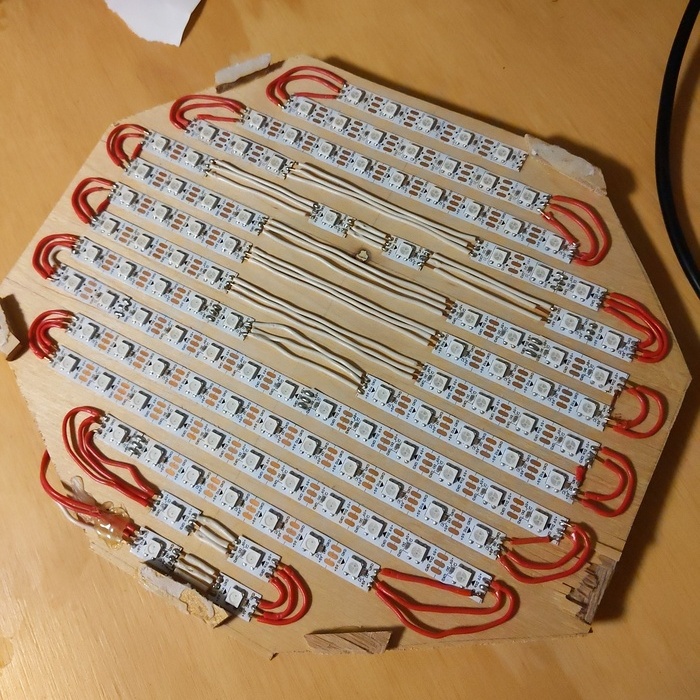
At some point after creating the physical layout I learned that I could create a custom map with .json. Once I figured that out, it started really looking nice. From there, I added an INMP441 I2S microphone, and to top it off, some hot glue to hold the electronics in place, and some faux fur fabric as the diffusion material.
I’m using a sound-reactive fork of the WLED software to control the Lil’ Lamb.
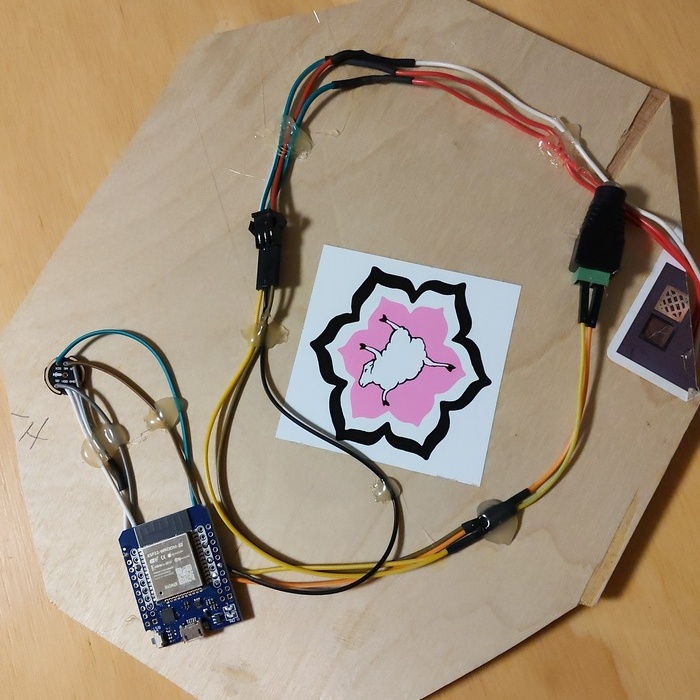
This lil’ lamb will be auctioned off to some lucky bidder at an upcoming flocktion for Wooly Fair. Below is a special section just for them.
Hello, new Lil’ Lamb owner!
Congrats on your Lil’ Lamb flocktion victory! You have great taste, and while I’ll miss him, I’m thrilled this hypno-sheep will find a place in your home. Below are some notes on the project which should help if you ever need to make an adjustment to software.
A Few Notes on Setting up Your Lil’ Lamb 🐑
- Once you bring your Lil’ Lamb home, you’ll need to add your WiFi network credentials to the software settings. First, plug in the Lil’ Lamb in it’s new home, and as long as it’s the only WLED installation on that network, you should be able to see a ‘WLED-AP’ network in your phone or computer’s network list. Once you select it, you’ll be brought to the device’s UI via IP address (make a note of this for possible use later) on your network, where you can change the WiFi credentials to the credentials of the new network. After you enter the new WiFi credentials and save, select the new WiFi network on your phone, and your Lil’ Lamb should now be accessable both via IP address, or with the WLED phone app using the find device feature (more on the phone app and this feature below).
- Want to take your Lil’ Lamb to a friend’s house? No problem! Just use this same process when moving the Lil’ Lamb to a new WiFi network.
- While you can always acccess the LED controls for your Lil’ Lamb on a browser via its IP address, I like the WLED phone app, and recommend that you use it. Once this is downloaded, you can search for your lil’ guy, and add him as a device in your app. If your Lil’ Lamb isn’t detected with the find device feature, you can add it via the IP address that you jotted down earlier. From there on out, all you need to do to change LED patterns, brightness, etc is to open your WLED app and click on your installation. I’ll be happy to help walk you through these important first steps.
A few Software Notes
- Many software settings (GPIO pin, audio settings, etc) are accessible via the WLED UI. If you need to re-install or change the software running on the D1 Mini ESP32, all you need is a micro USB cord, a computer, and access to the back of the Lil’ Lamb.
- There are a few websites where you can easily access various WLED software packages. I’ve found this one to be the best, especially when it comes to sound-reactive offerings. You received your Lil’ Lamb running the ‘MoonMod’ option at the bottom, for 4MB ESP32.
- Simply plug in the micro USB cord to your computer with the D1 Mini ESP32 attached to it. Select the software you want, and install.
- Once the installation is initiated, you’ll have the option to install the new software, or update the current WiFi settings on the current installation. Another option is to visit the URL of the device. Please note that accessing the UI for the WLED program via IP address is essentially the same as accessing it via the phone app. So if you prefer to not use apps and would like to access the controls via web page, simply bookmark the IP address.
- When you visit the device settings, either via phone app or IP address, you can adjust important settings such as your Wifi credentials. All other settings should not be touched, unless for some reason you decided to hack the hardware.
- Unlikely scenario, but if you decide to edit the LED layout of the Lil’ Lamb, you’ll be able to find the custom json mapping here, and can edit it accordingly. To upload your newly edited .json map, type in your device’s IP address into your browser with ‘/edit’ as a suffix. For example, 192.168.10.15/edit. Create a file named 2d-gaps.json, and paste your new json into the file. Save and return to the UI to reboot for new map to take effect.
Take good care of Lil’ Lamb! He’s fragile and should always be handled with care. If he needs to be repaired down the road, I’ll be happy to help get him back to hypnotizing folks in little time.
Enjoy! 🐑 😵💫